


Microsoft are about rollout a new feature for the Microsoft OneDrive app which will prompt users to sync their personal Microsoft accounts with OneDrive. While syncing a personal account on a corporate machine is nothing new, most of the time the users won’t have thought about logging in with a personal account. Most organisations probably don’t want their users doing it either.
The new feature is currently being tracked on the Microsoft 365 Roadmap under the id 490064. You can find all the information from Microsoft here.
So how do we handle this moving forward? The good news is, if you have already taken steps to actively block personal accounts in OneDrive, these settings should be honoured and there is nothing for you to do but sit back and relax. There is however a new setting to disable the prompt which you might want to rollout.
For those who are yet to implement any controls fear not, I’ll run through the options we have available to us now, but act quick, the rollout is starting this month (June 2025) and the feature is enabled by default.
Table of Contents
How to Disable Personal Accounts in OneDrive
Group Policy
The settings we need are included in OneDrive version 23.063 or above, so make sure you have that copied into your central store first. The ADMX is located in either:
C:\Program Files\Microsoft OneDrive\[BUILDNUMBER]\admor
%LocalAppData%\Microsoft\OneDrive\[BUILDNUMBER]\adm depending on how OneDrive has been installed on your local machine and will need to be copied into:
\\[DOMAINFQDN]\SYSVOL\domain\Policies\PolicyDefinitionsbefore they can be used.
The first setting we will need to configure is a user setting called Prevent users from syncing Personal OneDrive accounts.

The next setting is a computer setting called Disable a toast and activity center message to encourage a user to sign in OneDrive using an existing credential that is made available to Microsoft applications.

That’s pretty much it. If you haven’t configured any settings for OneDrive, you should probably go and have a look at what can be configured as there are some useful options in there.
Intune
With Intune, we have a couple of ways to configure the settings we need to various degrees of success as you will soon find out.
Settings Catalog
At the time of writing Microsoft haven’t updated the settings catalogue to include the new setting for disabling the prompt (see the ADMX option below to overcome this), however we can still prevent personal OneDrive accounts, however please note, this may not stop the prompt from being displayed to your users.
The setting you want is Prevent users from syncing personal OneDrive accounts (user).

You can always couple this settings catalog option with the reg key below to disable the prompt, alternatively keep reading for the alternative to settings catalog.
ADMX
So, the settings catalogue doesn’t have the new setting, isn’t the cloud wonderful hey? However, all is not lost, as we are able to import admx templates now. The settings we need are included in OneDrive version 23.063 or above, so make sure you have that installed first.
Then you will need to locate two admx files and their associated language files. The first is Windows.admx. This is located in C:\Windows\PolicyDefinitions.The language file for this one is Windows.adml and that’s located in C:\Windows\PolicyDefinitions\en-US
Next is time to locate the OneDrive.admx and OneDrive.adml files. These are located in either C:\Program Files\Microsoft OneDrive\[BUILDNUMBER]\adm or %LocalAppData%\Microsoft\OneDrive\[BUILDNUMBER]\adm depending on how OneDrive has been installed.
Now those are located we can head over to the Intune portal and get them imported.
Intune > Devices > Windows > Configuration > Import ADMX then click on Import
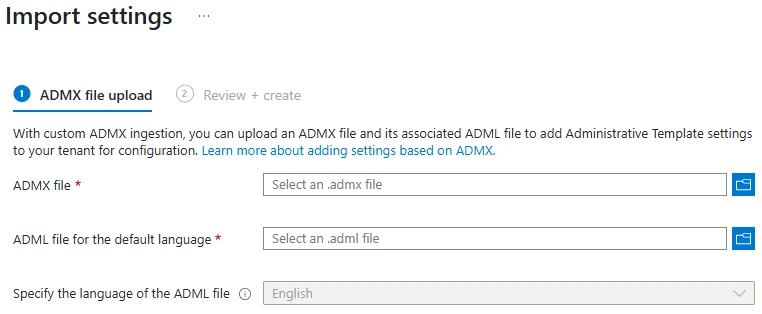
Upload Windows.admx and Windows.adml first, then OneDrive.admx and OneDrive.adml. This is important due to a dependency in the OneDrive template files which can’t be resolved by Intune until it know about the Windows template.
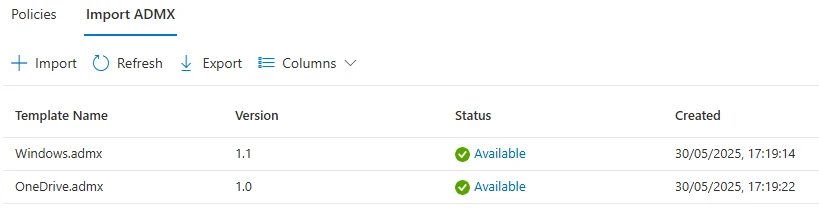
Now you can create your policy.
Intune > Devices > Windows > Configuration > Profile then click on Create and then New Policy.
Select the following options:
Platform: Windows 10 and later
Profile type: Templates
Template name: Imported Administrative templates (Preview)
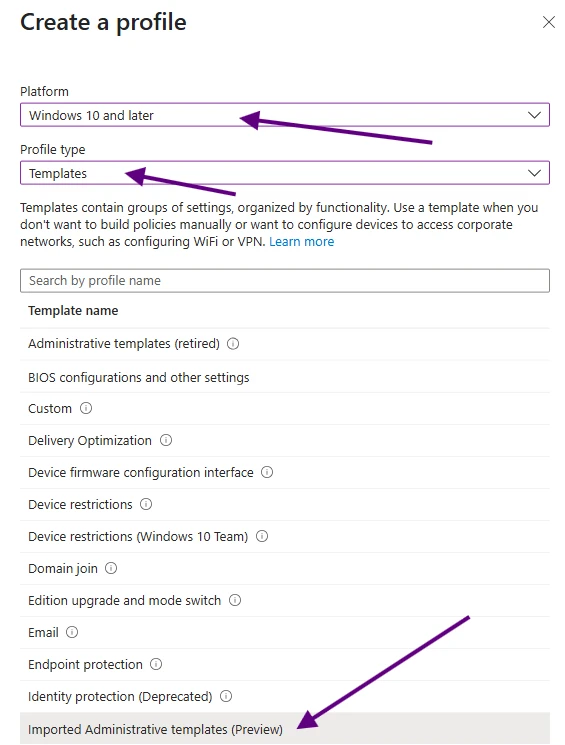
The first setting we will need to configure is a user setting called Prevent users from syncing Personal OneDrive accounts.

The next setting is a computer setting called Disable a toast and activity center message to encourage a user to sign in OneDrive using an existing credential that is made available to Microsoft applications.

Complete the policy like you would any other Intune policy by selecting your assignments and saving.
Registry
Last but not least we can set some registry keys to control the experience:
[HKLM\SOFTWARE\Policies\Microsoft\OneDrive]"DisableNewAccountDetection"=dword:00000001[HKCU\SOFTWARE\Policies\Microsoft\OneDrive]"DisablePersonalSync"=dword:00000001Conclusion
This is potentially a big issue for organisations who which to retain control of their data. Should this be allowed in your organisation there is potential for data exfiltration as once it’s in that personal OneDrive you have potentially lost control of it.
It’s also evident that Microsoft need to catch up in terms of the settings catalog offering in Intune as it’s missing a setting which has been round since 2023. We really shouldn’t have to mess around with ADMX uploading to get around that.
Did you find this useful and did your organisation get caught out by this update? Let me know in the comments, I’d love to hear what the community’s experience of this has been like.


